LumaCite
Sign inGet started

READ & ANNOTATE

Read closely.Keep your thinking.

Read PDFs, mark key passages, and keep your notes beside the source. Come back to the paper with your thoughts intact.

In your browser No installation

A passage, a highlight, a thought worth keepingA yellow highlight on a research page connects to a blue margin note asking about study design. Three colored page tabs represent methods, evidence, and questions. READING THE EVIDENCE Read with a question. A useful finding needs context. MY NOTE · PAGE 1What was thestudy design? Keep the why, too.

THE PDF WORKSPACE

The paper and your notes.
In one view.

Open a PDF and settle into the text. Your annotations sit alongside it, with the passage and page number close at hand.

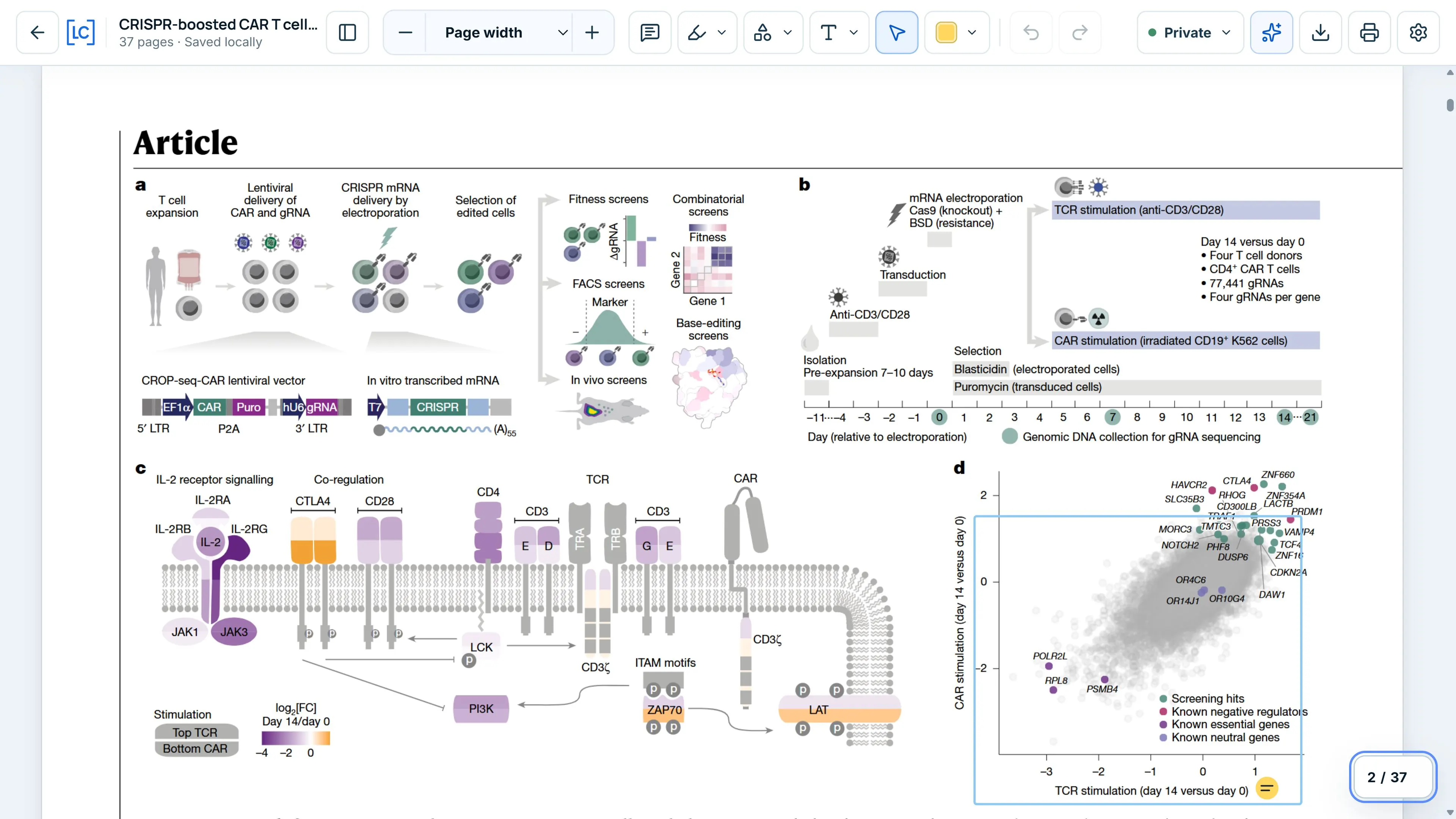
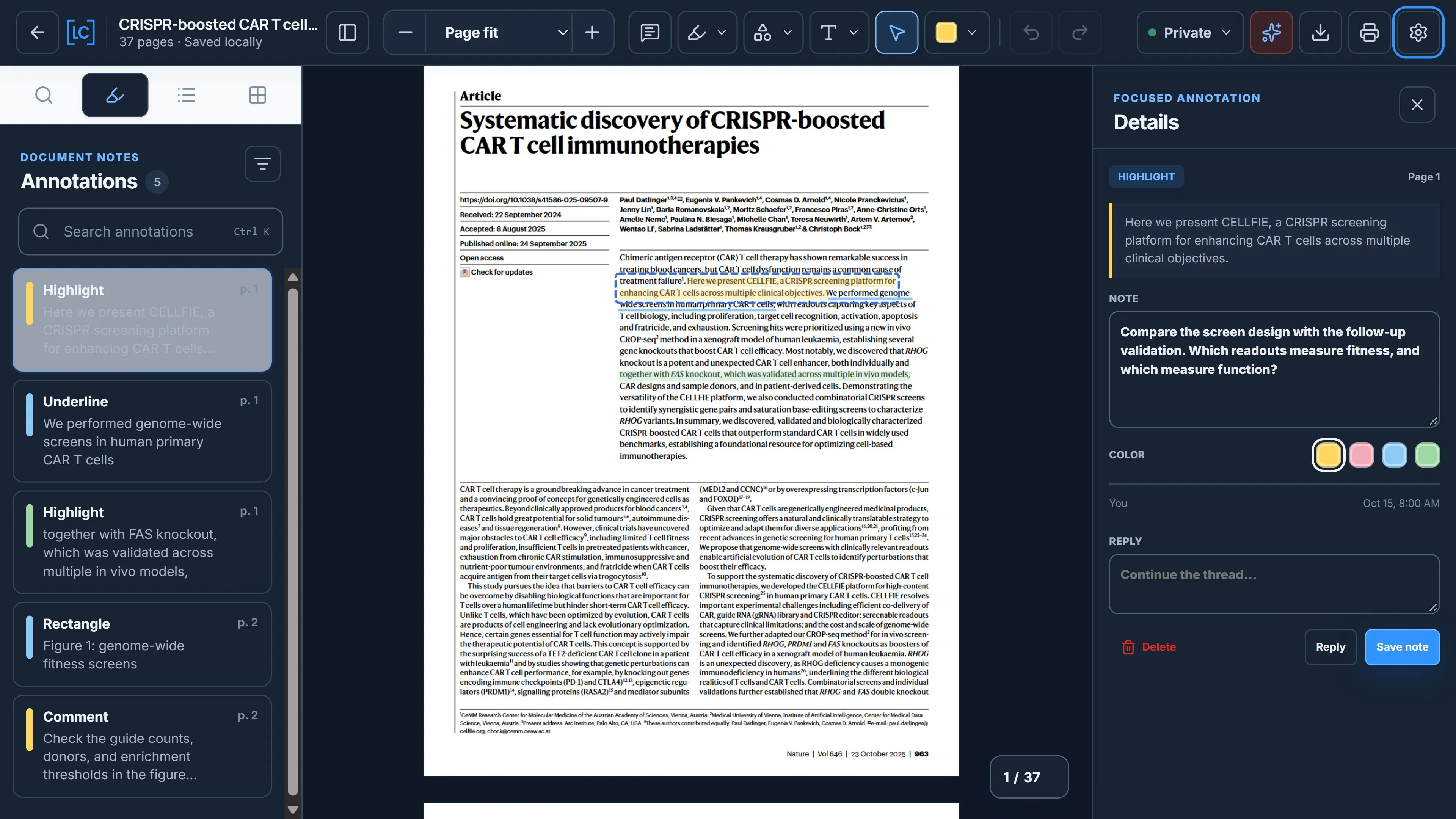
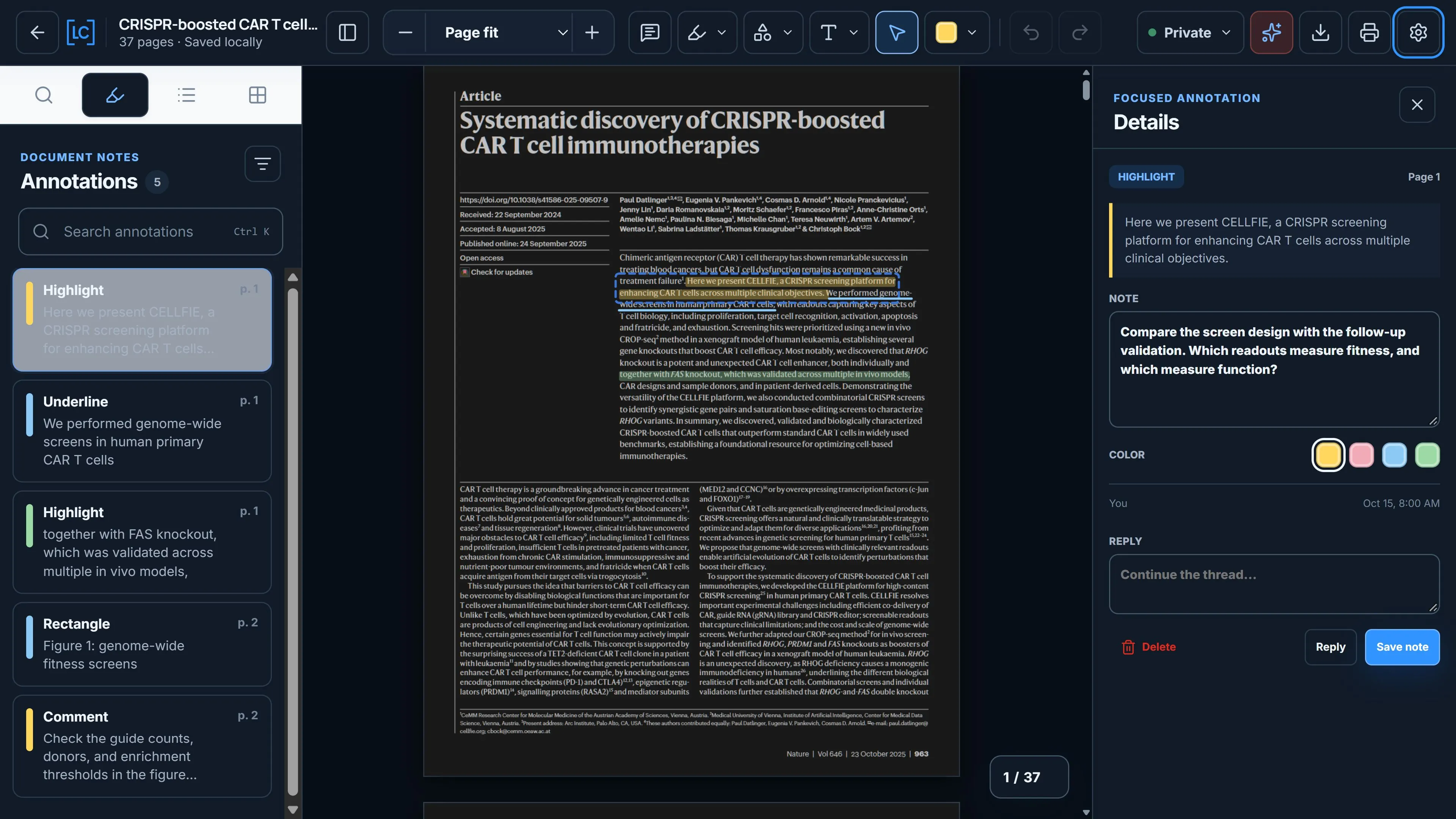
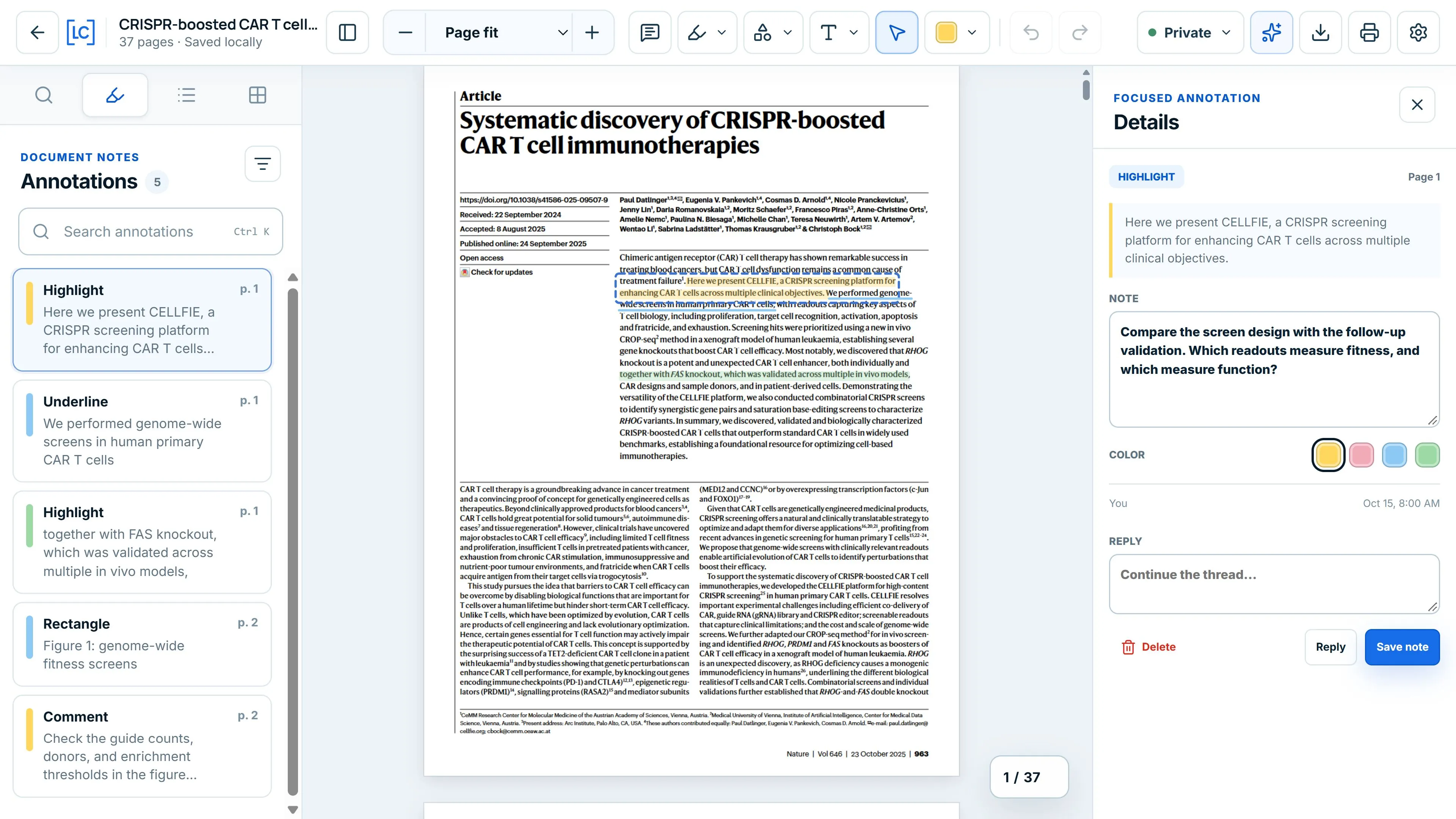
Shown: Datlinger et al., Systematic discovery of CRISPR-boosted CAR T cell immunotherapies, Nature (2025). © The Author(s), CC BY 4.0. Demonstration highlights and notes added in LumaCite. Select an image to enlarge it.

Find your place

Use page thumbnails, the document outline, or a page number to move through a paper.

Find a passage

Search the PDF’s text for a word or phrase and jump to a result.

Set the view

Fit the page to your screen, adjust the zoom, or hide the sidebar for more reading space.

HIGHLIGHTS & DRAWINGS

Mark the detail
that matters.

Highlight a passage, underline a phrase, or strike through text. Choose a color to distinguish a finding from a question or a limitation.

Highlight a finding.
Keep its context.
Use a color for a finding, a question, or a limitation.
HighlightUnderlineStrikethrough
Draw attention to a figure, then record what you want to check.

Go beyond the text

Use a rectangle, oval, arrow, or freehand line to mark a figure or table. Add a text box when a label explains it better.

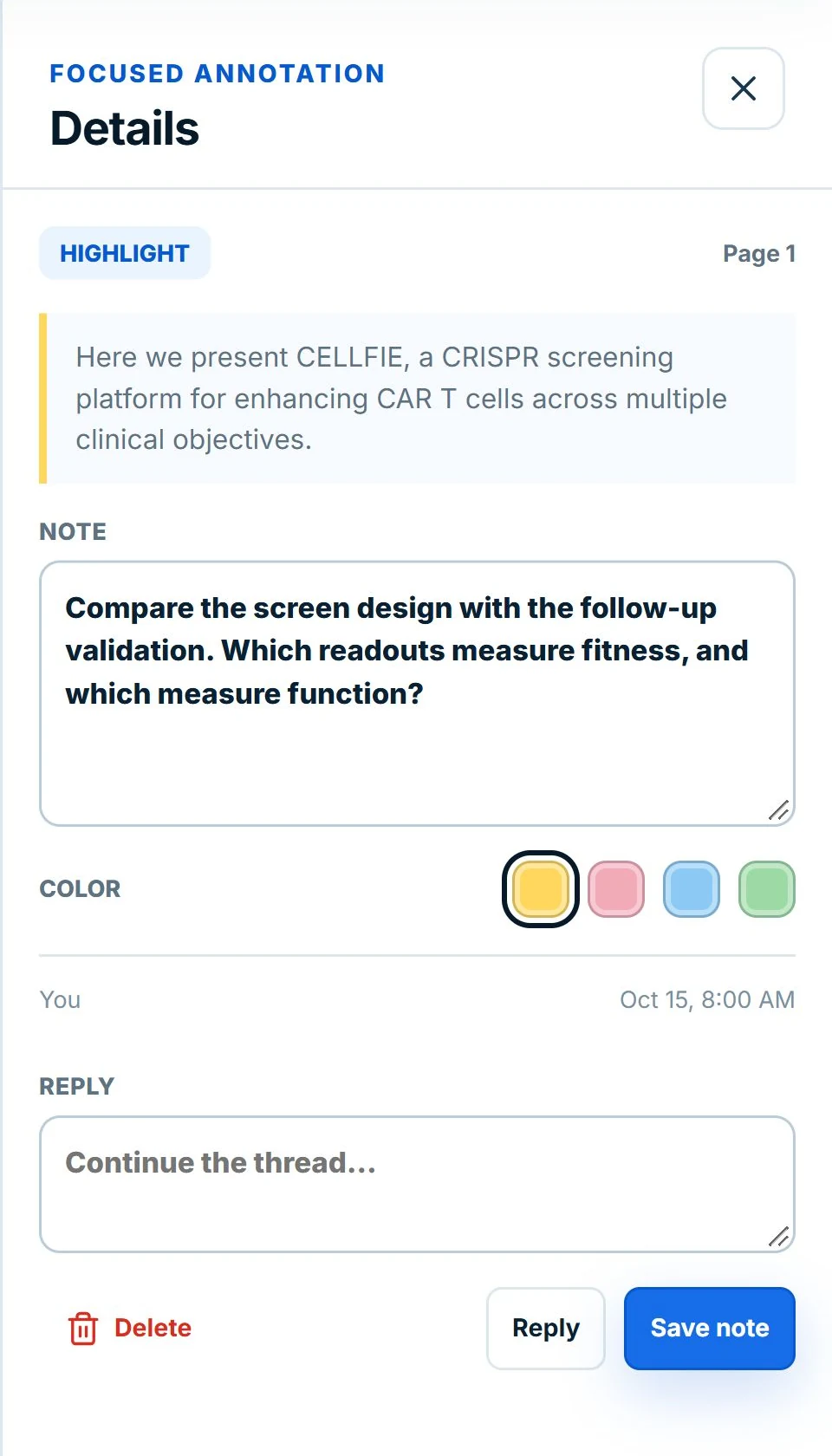
LumaCite annotation details showing the original quote, page number, note, and color choices

NOTES IN CONTEXT

Keep the passage.
Add your perspective.

Why did that sentence catch your attention? Add a note to the highlight while the thought is still fresh. Or place a standalone comment on the page.

When you return, search your annotations or filter them by type and color. Keep the source page number with each note.

Quotes and your own notes stay separate, with the source page attached.

READING THEMES

Settle into
your preferred view.

Choose Light for a bright workspace, Dark for darker controls around a white page, or Night for a darker page as well.

Switch between actual views of the PDF workspace.

Dark controls keep the document page white.

ANNOTATION EXPORT

Take your notes
into your next draft.

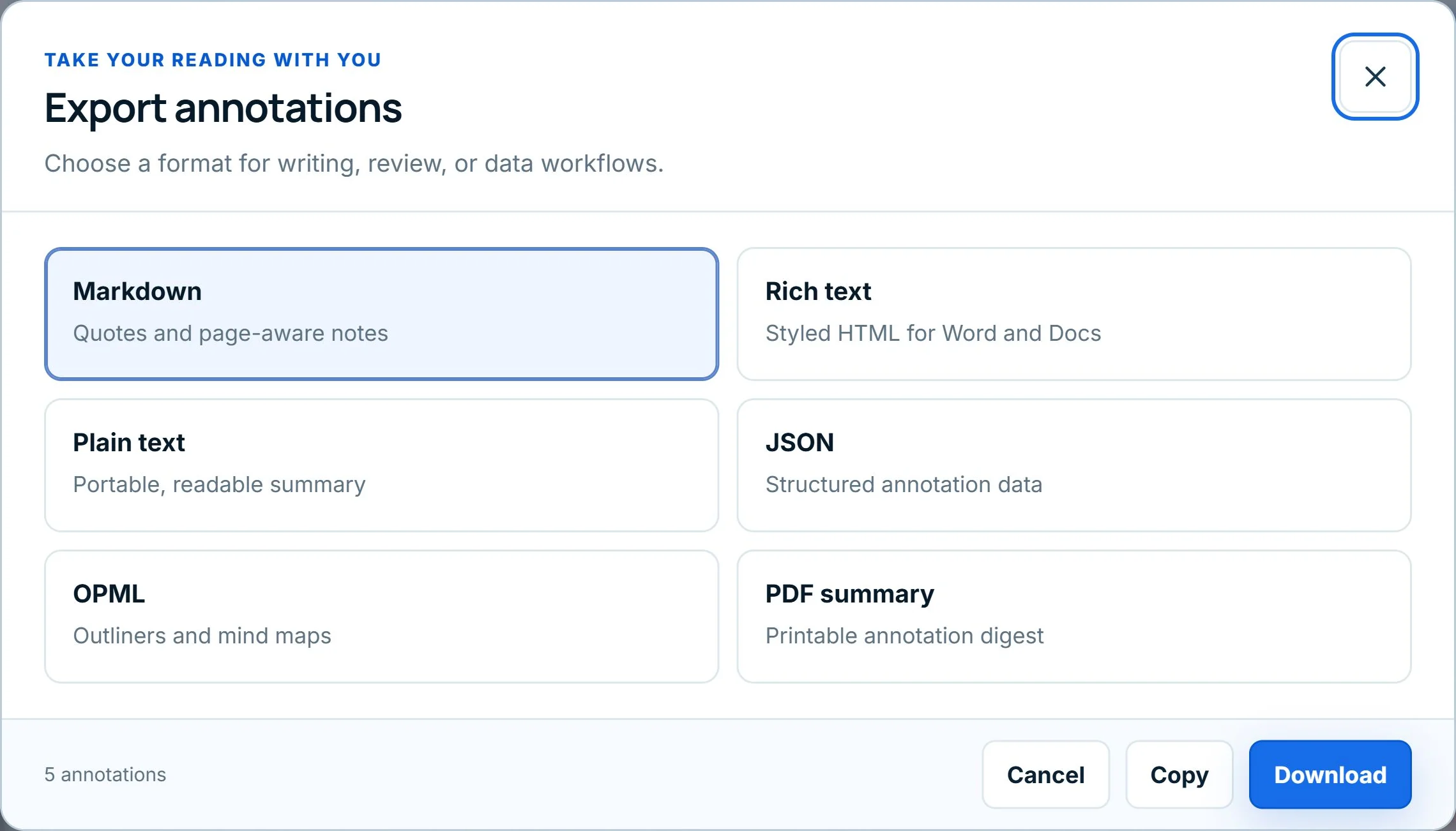
Export quotes, comments, and page references as a readable summary. Choose the format that suits your writing or review.

  • Markdown
  • Rich text
  • Plain text
  • JSON
  • OPML
  • PDF summary

A copy with your marks

Download a flattened PDF with annotations visible on the page, or keep the original PDF without your marks.

A summary for your writing

Copy rich text into a document, use Markdown in your notes, or download a PDF summary to review on its own.

BEFORE YOU START

A few practical details.

Where are my annotations saved?
The PDF workspace saves annotations in this browser on this device. Export your notes before clearing browser data or moving to another device.
Can I search every PDF?
Text search and text highlights need selectable text. Scanned pages without a text layer can still be marked with drawing tools and comments.
Do I need a LumaCite account?
You can open a local PDF in the standalone workspace without a library account. The connected cloud library requires approved beta access.

MAKE TIME FOR A CLOSER READ

A paper to read.
A thought to follow.

Open a PDF and make the first note.
Open PDF workspace