Find papers anywhere. Collect them in a few clicks.
Save papers as you browse, search online, or import references and PDFs you already have. They all land in your library, ready when you need them.
01 FILES & LISTS
Bring in the references you already have.
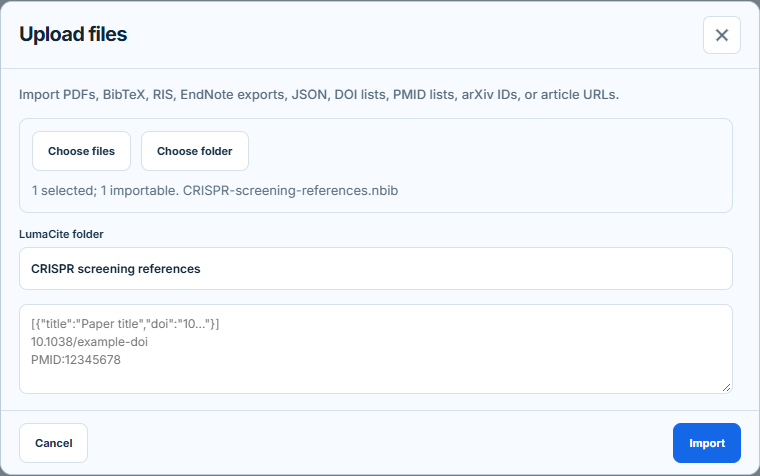
Open Add → Upload files. Choose PDFs or exported citation files, select a folder if you want one, then click Import.
Coming from another reference manager?


 Mendeley
Export a citation file there, then upload it to LumaCite.
Supports PDF, RIS, BibTeX, NBIB, EndNote, and JSON files. Choose several files or a whole folder at once.
Just have a DOI, link, or citation?
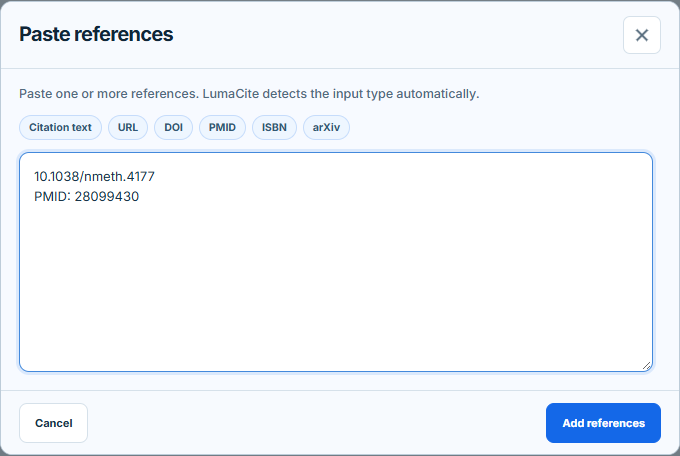
Choose Add → Paste references. Paste one or more DOIs, PMIDs, ISBNs, arXiv IDs, article URLs, or citations, then click Add references.
02 BROWSER CAPTURE
Save papers where you find them.
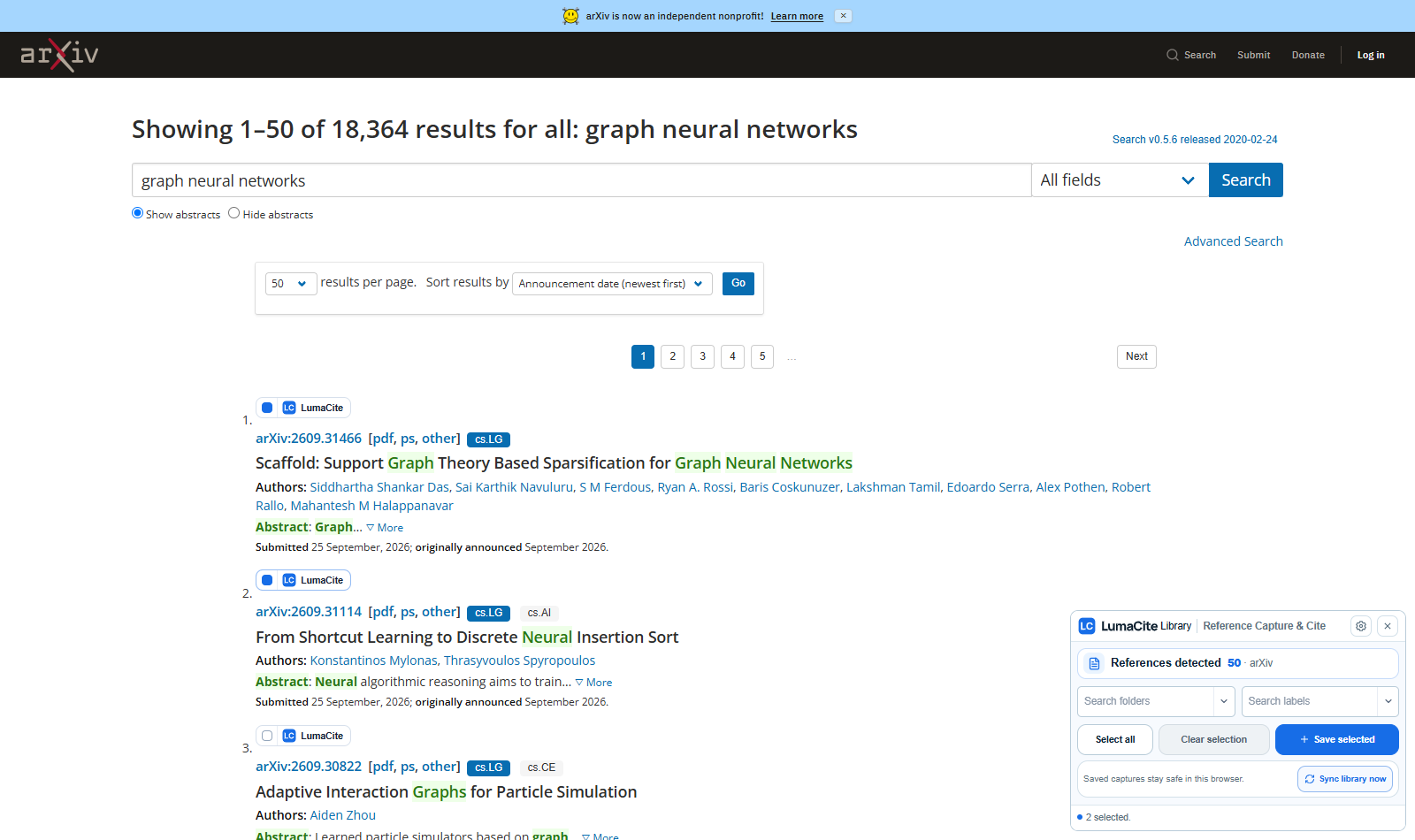
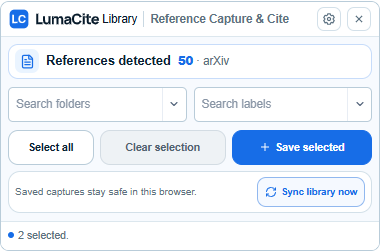
On supported research sites, LumaCite Capture & Cite adds a save control beside detected papers. Click it to save one paper, or select several and click Save selected. When signed in, use Sync library now to bring your browser captures into your Library.
03 ONLINE SEARCH
Know the paper? Find it from your library.
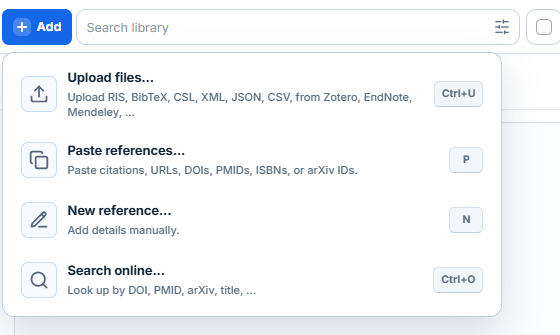
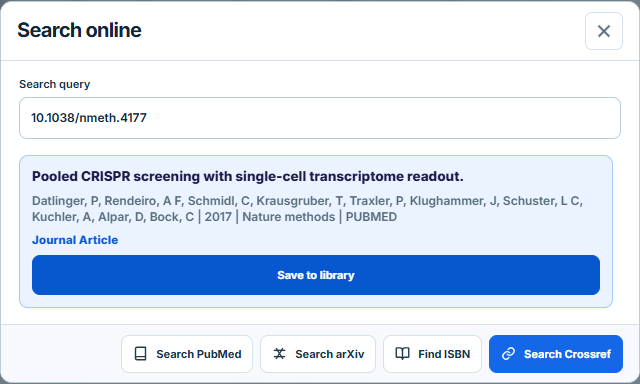
Open Add → Search online. Enter a title or an identifier such as a DOI, PMID, arXiv ID, or ISBN. Review the result, then click Save to library.
Choose a search source in the dialog. If there is no match, use Add → New reference to enter the details yourself.
04 FULL TEXT
Keep the PDF with its reference.
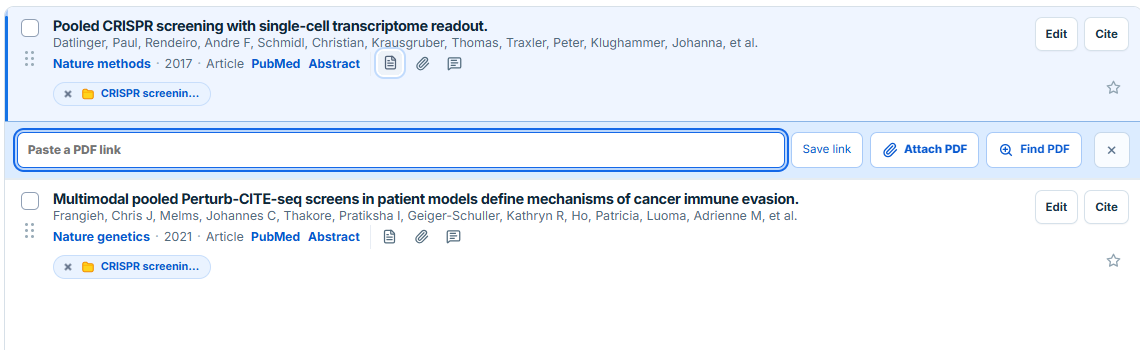
After a reference is saved, open its PDF control. Choose Find PDF to look for a verified public copy, Attach PDF to upload a file, or paste a direct PDF link and click Save link.
Prefer to look for PDFs as you capture?
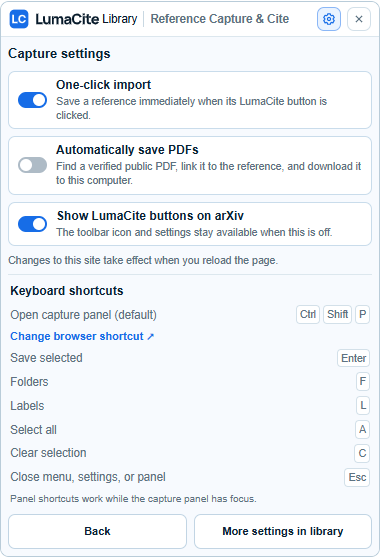
Turn on Automatically save PDFs in Capture & Cite settings. The extension looks for a verified public PDF, links it to the reference, and downloads it to your computer when available.
READY TO COLLECT?
Start with the source in front of you.
A file, a link, or a paper on the web all have a way into LumaCite.
Get started with LumaCite