Add references to your library
Sign in to your library and click Add at the upper left. Choose the option that matches what you have.
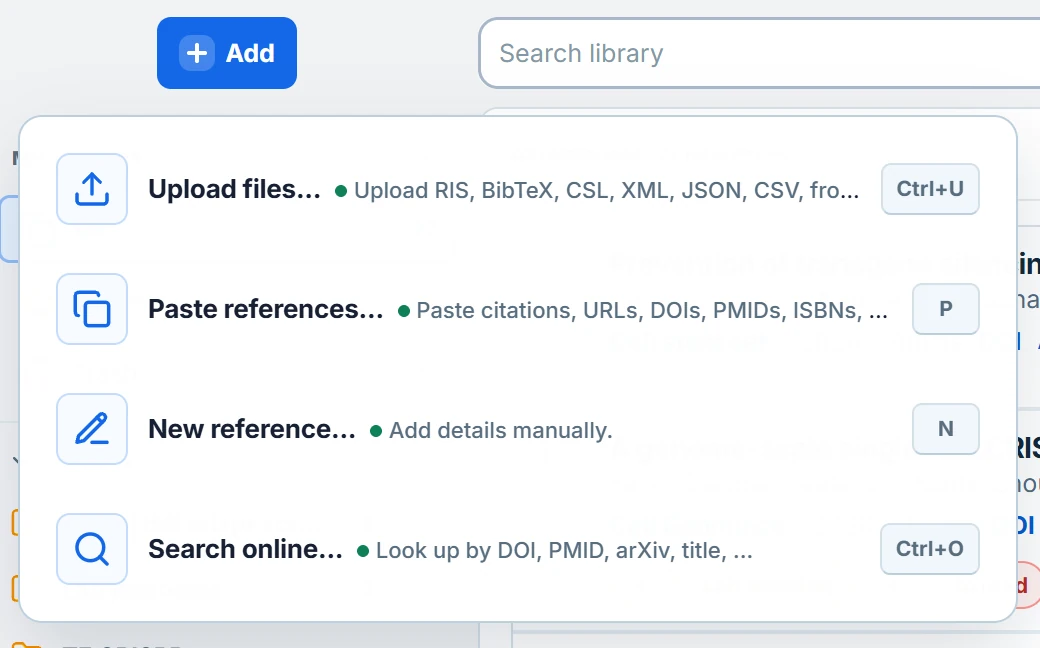
- Upload files to bring in a RIS or BibTeX export from another reference manager.
- Paste references if you already have a DOI, PMID, ISBN, URL, or citation text. Review the results before saving.
- New reference lets you enter the bibliographic details yourself.
- Search online to look up a paper by title or identifier and save it from the results.
Moving an existing library? Start with the file import guide.
Save papers from Chrome
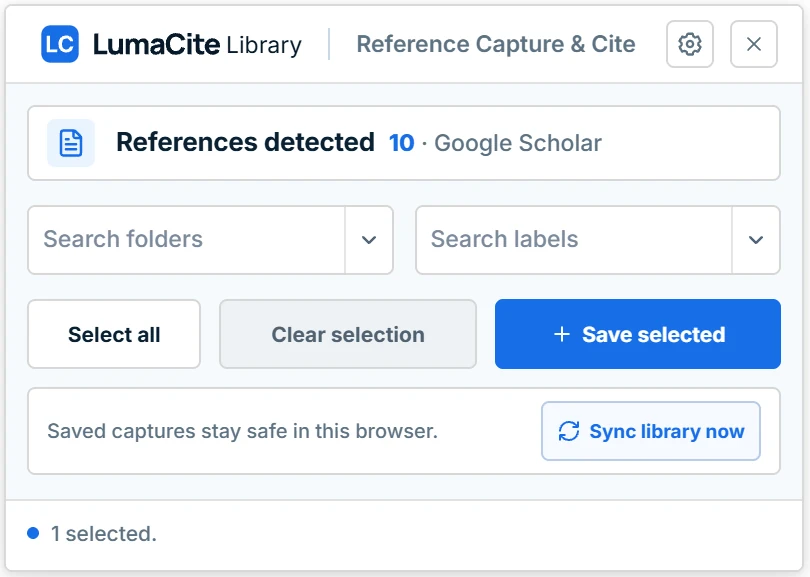
Install LumaCite Capture & Cite. Open Chrome’s Extensions menu and pin the blue LC icon so it’s easy to find.

- Search on Google Scholar and tick the LumaCite checkbox above each result you want to keep.
- In the capture panel, choose a folder or label if you want to organize the references as you save them.
- Click Save selected. With your library connected, use Sync library now in the panel if you want to sync the saved references immediately.

Attach and annotate PDFs
Click the document icon labeled Add PDF on a reference. Choose Attach PDF for a file on your computer, paste a direct PDF URL and click Save link, or try Find PDF to look for a publicly available copy.

Open an attached PDF in the reader to highlight a passage or add a comment. Use the Annotations sidebar to return to your notes while you read.
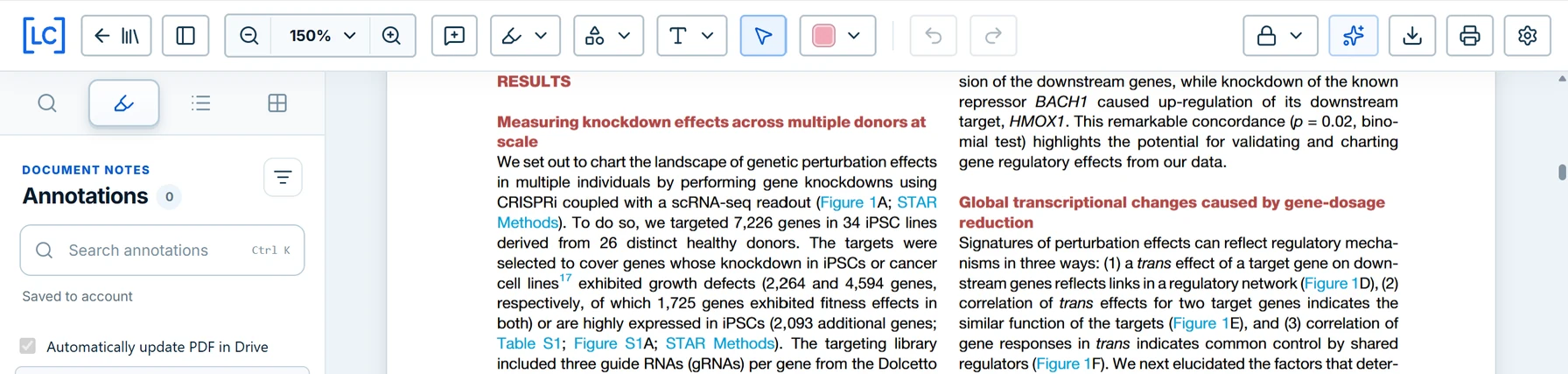
See Read and annotate for more on the reader tools.
Organize with folders and labels
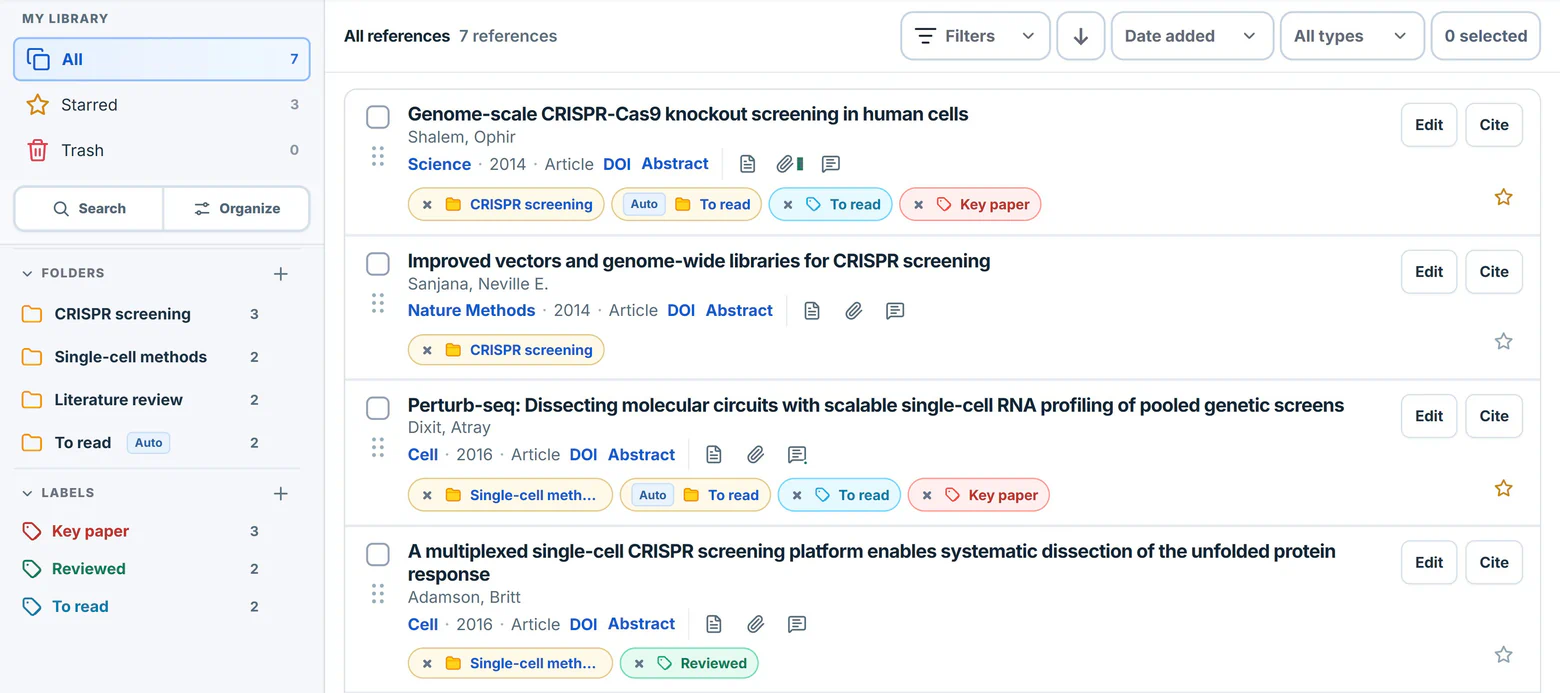
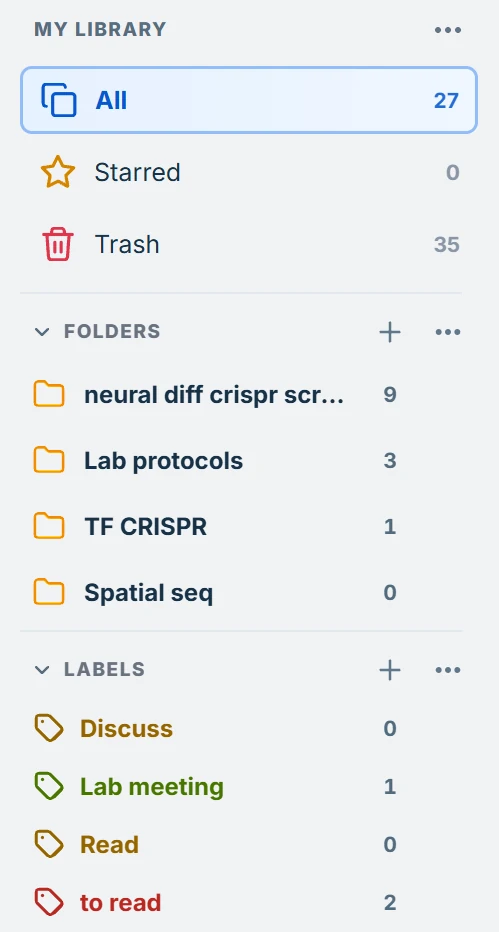
Use folders for projects and labels for details that cut across projects, such as papers you want to read or discuss.
- Click the + next to Folders or Labels in the library sidebar to create one.
- Drag a reference by the handle on the left of its row onto a folder or label. To organize several at once, select their checkboxes and use the folder or label button in the toolbar.
- Click a folder or label in the sidebar to see the references you assigned to it.
Use the ⋯ menu next to Folders to find Sort folders and Manage folders.
Copy and export citations
Click Cite on a reference to copy its citation and paste it into your document. To copy several at once, select them and click Cite in the library toolbar.

To take selected references with you, click Export and choose a file format. For a LaTeX project, choose BibTeX or BibLaTeX.